
Introduction
Are you still doing the same exact recurring tasks on your computer each and every day? Clicking the same buttons, copying the same data, and repeating the same reports — again and again. This is exactly where Desktop Automation: The Complete Guide can help you understand how desktop automation works. It reduces manual workflows, saves time, and streamlines repetitive tasks with smart solutions that work smoothly between humans and machines.
This guide will explain what desktop automation is, how it works, and why businesses and individuals are quickly getting on the desktop automation train. Whether you are new to this concept or want more insight, you will find everything here.
What Is Desktop Automation?
Desktop-automation is a type of software designed to execute automation on the task which repeatedly done by human without needing manual input each time. It is not clicking through menus or typing in data, but rather automation software automating those actions instead of a human.
Its like a virtual assistant is what we can say. The one-time job training it do. Once done, it will perform that task as reliably as clockwork; every single time and at whatever speed you choose.
It is not just the Enterprises Solution of the desktop automation. Automating the daily workflows will save some valuable time that students can set aside for studies Automation is not just about businesses but small ventures, freelancers or even single users. Anything from renaming files in batches to filling out web forms, the possibilities are borderline infinite.
How Robotic Desktop Automation Works
Robotic desktop automation (RDA) is actually a sub-field of desktop automation which uses software “robots” to replicate human interaction with the computer. The robots interact with the desktop just like a human would by clicking buttons, typing text, reading screen content and moving around in applications.
This is how the entire process usually goes:
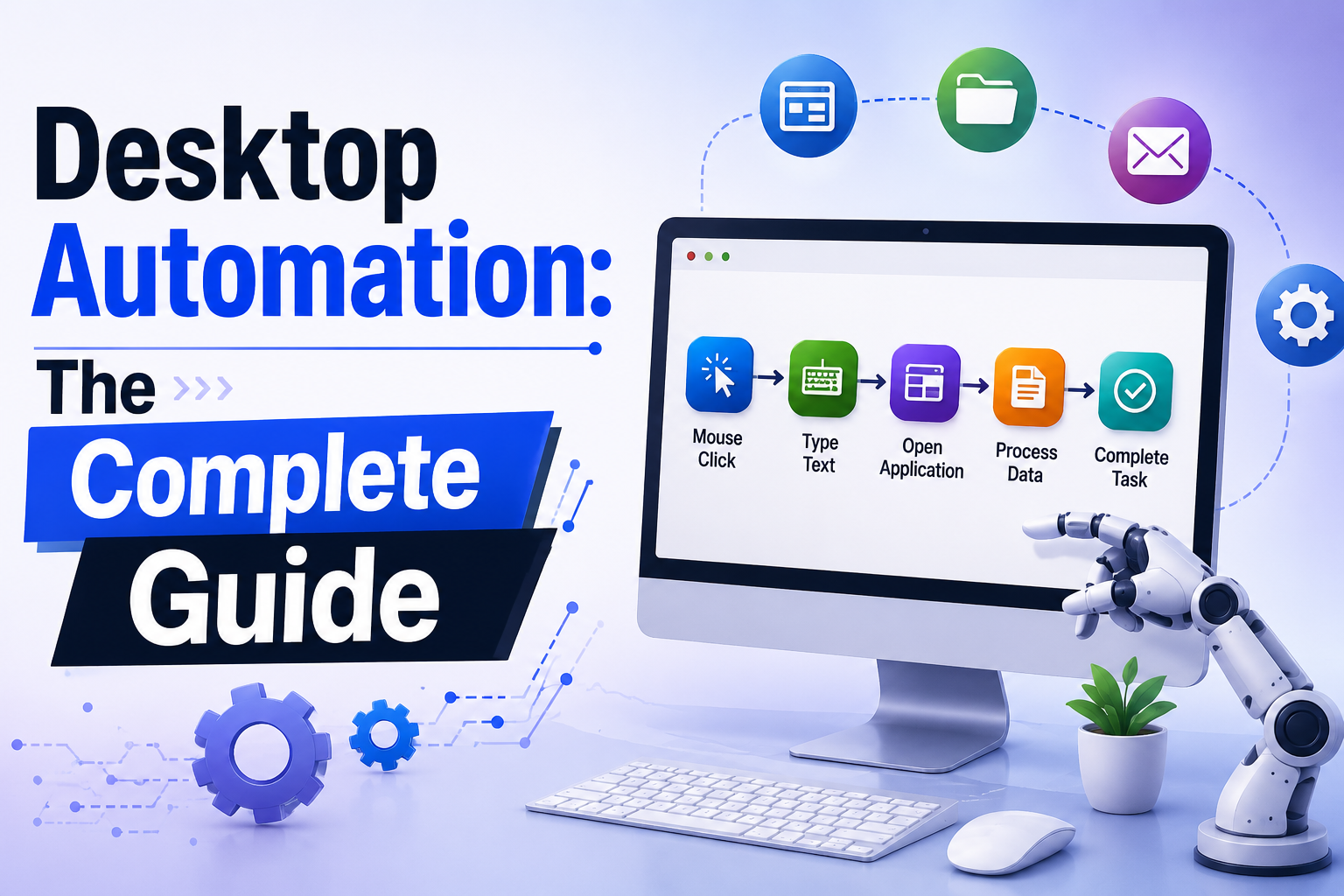
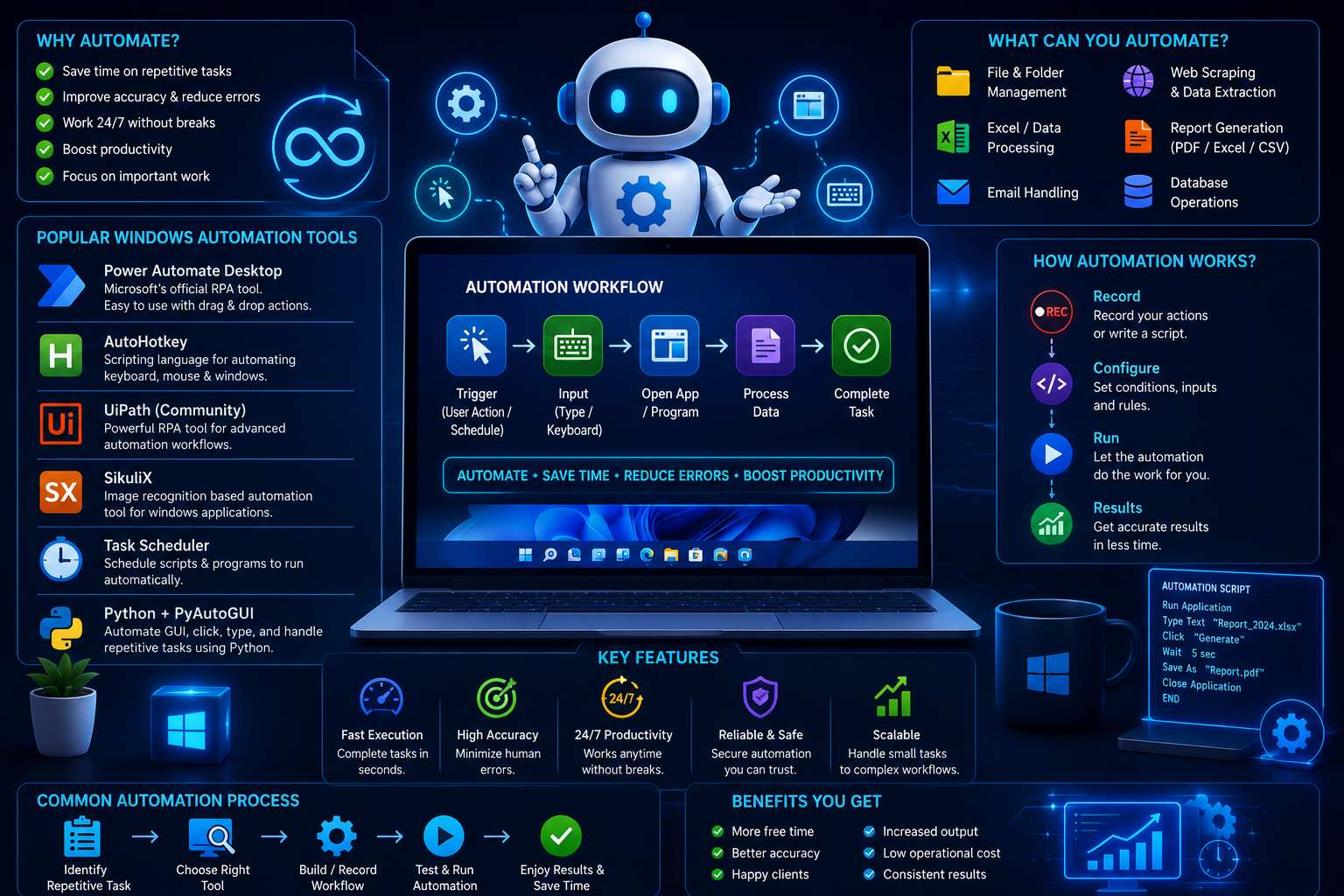
Step 1 — Record / Script the Task You record yourself doing actions or you write a script outlines what the robot is supposed to do. This is made easy by having visual drag-and-drop builders in most tools.
Step 2 – Set Triggers you determine when and how often the robot will run. It could be scheduled, based on a file change or even an event in the screen.
Stage 3 – Execute And Monitor The robot performs the task by itself. The majority of platforms come with some sort of a dashboard for you to be able to track performance, catch errors and review logs.
Step 4 – Polish and Execute When a process is stable, you can optimize it even more or apply it to several workflows and users.
RDA is extremely beneficial for automation of legacy software tasks. The robot can also navigate the visual interface of the application which behaves like a human, if there is no API to use.
The Significance of Desktop Automation in the Modern Workplace
Manual repetitive tasks are sapping businesses a huge amount of time. Research has shown that a good chunk of an employee’s working hours are spent on activities that can be automated. That time has a real cost — in cash, fuel and attention.
We explain why modern teams have made desktop automation a priority here:
Less Human Error Manual data entry is susceptible to error. Automation removes most human errors by adhering strictly to established protocols.
Speedier Executions A software robot can execute tasks that may take a human several minutes in seconds. Multiply it out across hundreds of daily tasks and you can understand how speed compounds really quickly.
A Happy Employee No one really loves copying and pasting data all day long. Automation allows employees to concentrate on the higher-value, more creative work.
24/7 Availability As opposed to humans, the automation tool does not need breaks, sleep or weekends. They can run in off-hours/holidays too.
Cost Savings Saving mater labor hours has a direct impact on business costs. Many companies that invest in automation see a return on investment (ROI) in year one.
Screen Automation: How to Communicate With Any Application
Screen automation is one of the most powerful forms of desktop automation. Using this technique, automation tools can manipulate applications by “seeing” the screen (buttons, text fields, images and other elements of the UI).
The option of screen automation is fundamentally important since it does not rely on the application that you are automating having open APIs or special capabilities for integration. All software, even old legacy systems – it works with practically anything.
These possible screen automation usecases are:
- Extraction of Data: Extracting data from on-screen reports or dashboards into spreadsheets
- Form filling — Automatically inputting data into web or desktop forms
- Application testing – Testing the software for its expected behavior through user operation simulation
- Process document – Read and catalog information on an invoice or receipts, or a scanned file
The updated way of the newly released screen automation tools is that they use a mix of techniques such as image recognition, optical character recognition (OCR), and coordinate mapping to mimic actions of people on an interface so that they can navigate it accurately. In addition, some other advanced tools use AI to make these interactions much smarter and more flexible.
Best Windows Automation Tools To Learn
If you work in Windows Environment, you have powerful Windows automation tools readily available. Following are some of the most commonly used options:
AutoHotkey
Free and Open Source Windows Automation Scripting Language, AutoHotkey It enables users to write scripts that automate keystrokes, mouse movements and even full multi-step workflows. Its light weight and flexibility make it a power user favourite!
UiPath
A leader in robotic desktop automation is UiPath. It has a visual workflow builder, extensive library of reusable automation components, and enterprise-grade features. Perfect for desktop as well as web-centric tasks to automate in a corporate environment.
Power Automate Desktop
For scene around Microsoft users, the in-house Power Automate Desktop (previously known as Microsoft Flow) is a powerhouse. You get a perfect integration with Microsoft 365, Excel, Outlook and other MS products. It has a visual designer with no coding knowledge required.
AutoIt
AutoIt is another widely adopted tool for automating Windows. It is designed for Windows GUI automation, and used for software installation scripts, application control and Keyboard or Mouse simulation.
Indy: Tap into Zapier and Make (for your web-based extensions)
These are mainly cloud-based tools but offer desktop automation on top of that — they connect web applications and trigger automated workflows on some events.
These Windows automation tools each have their unique strengths. The right option varies depending on your technical experience, how complex your workflows are and how much money you have available.
Business Applications for Desktop Automation
Let us see how several industries are making use of the desktop automation today.
Finance and Accounting Automate account reconciliation, reporting, invoice processing, and spreadsheets with finance teams. What took hours before is done in minutes.
HR Human Resources departments automate onboarding pipelines, employee data updates, payroll processes, and compliance reporting. This reduces administrative burden significantly.
Screen automation and robotic desktop automation used by support teams automates the process of pulling up customer records, logging call notes, and updating tickets without a manual switch from one system to the other.
Healthcare Medical practices use automated appointment scheduling, entry of patient data, and insurance claim submissions. It decreases on the paperwork and focuses staff more of patient care.
Automate the updating of inventories and reporting on orders, pricing changes through several platforms at once in Retail and E-Commerce Retailers.
These examples demonstrate that desktop automation is far from being a technology trick. This is a practical, tangible solution with applications in almost every industry.
Getting Started With Desktop Automation
You don’t need to have complicated desktop automation сразу в Discord. But do not worry here is a high level roadmap which will help you get started.
Bring Out Your Bottlenecks Start with the repetitive tasks you do, time and again. Look for processes that are repetitive, take the same steps every time and do not require high-level human decision-making.
Select the Right ToolBased on your requirements and with consideration of technical expertise, select any one of the windows automation tools or other platforms. Most of them offers free version or trials.
Never Automate Everything in a Go Start with ONE simple workflow and build from there A small victory builds confidence, and you will get your hands dirty.
Test Well Run tests before you deploy automation in production. Ensure you handles edge cases and errors well.
Document Your Automations Making sure to document clearly what your automations are doing, when they run and who works on them. But that is hugely relevant in team environments.
Add On Gradually After your first set of automations can run reliably, start expanding to more complicated workflows. Automation adoption at many organizations follows the path of least resistance, with successful first steps leading to additional uptake.
Common Challenges in Desktop Automation
Desktop automation, like any other technology, has its issues. Knowing them makes you prepare better.
Interface Changes If the user interface of an application changes, screen automation can break. This is why you have to maintain your automations from time to time.
Error Handling If not carefully designed, Vanta automations can fail without leaving any trace or introduce data issues when executed. Always have fallback actions and alerts in place to handle such scenarios.
Security Issues The automated processes sometimes involve sensitive data. Ensure that your tools are in line with organizational security policies and data protection regulations.
Resistance to Change Some employees are concerned that automation jeopardizes their jobs. Explaining automation — as a thing that helps to do human tasks, rather than replacing someone — better clarifies the situation and leads to minimising this resistance.
Time & Initial Setup Time Automating things does come with an overhead. But this investment pays off quickly as soon as the automation works reliably for hundreds or thousands of task runs.
The Future of Desktop Automation
Desktop automation is evolving rapidly. AI and ML are making automation more intelligent, adaptable, and easier to construct. Below are some of the trends that will shape its future:
AI-Driven Automation New age platforms are incorporating AI capabilities to help bots grasp unstructured data and respond to exceptions more smartly along with learning from previous actions.
Low-Code and No-Code Platforms Even more tools will be eliminating your need for programming. This makes desktop automation accessible to a much larger userbase.
Hyperautomation Instead of automating selected tasks, organizations are going to where development leads the way by automating end-to-end processes. Hyperautomation Hyperautomation combines robotic desktop automation, AI, and process mining into a comprehensive way to automate processes.
Automation has been about connecting desktop workflows with the cloud so that data can move easily between local applications and online services.
As these technologies mature, the role of robotic desktop automation will grow. Those who invest in automation now will be well-positioned to fair better against the next wave of laser-focused competition.
Conclusion
Desktop automation is not a privilege of only big tech companies anymore. This is a realistic, convenient purchase that saves hours and dog food days for the benefit of even small businesses. Whether you use basic windows automation tools such as AutoHotkey or an enterprise-grade platform, able to build complex workflows easily like UiPath; the principle remains the same: software takes care of repetitive tasks while people get on with what they do best.
This overarching field comprises subsets of technology that offer both powerful screen automation and robotic desktop automation capabilities, each treating separate challenges. They work together as an entire suite of tools for updating what we do on a computer.
Your time to start automating is now. Find a repeatable task, pick a tool that matches your workflow and start the journey towards an efficient workday. The results will speak for itself.